User OnPremisesExtensionAttributes from MS Graph

OnPremisesExtensionAttributes are not exposed by AAD PowerShell cmdlets, but they can be read from MS Graph.

https://developer.microsoft.com/en-us/graph/docs/api-reference/v1.0/api/user_list

My requirement is for reporting, so i need all the User objects with selected properties. For this we need an AAD App with User.Read.All permissions to MS Graph.

$ProgressPreference = "SilentlyContinue" # Azure Function App
<#
    Brearer token for the application
    Tenant can be found from (token_endpoint)
        https://login.windows.net/<yourdomain>.onmicrosoft.com/.well-known/openid-configuration
    $AccessToken
#>

$Tenant = ""
$AADGraphAppId = ""
$AADGraphAppKey = ""

$Body = @{
        "grant_type" = "client_credentials"
        "resource" = "https://graph.microsoft.com"
        "client_id" = $AADGraphAppId
        "client_secret" = $AADGraphAppKey
    }

$AppReq = Invoke-RestMethod -Uri "https://login.microsoftonline.com/$Tenant/oauth2/token" -Method Post -Body $Body
$AccessToken = $AppReq.access_token

After having the proper Bearer token, call MS Graph to get all users.


<#
    Loop all pages to get all Users
    Modify $select to get different properties
        onPremisesExtensionAttributes
    All Users will be included in the $UserData
#>
$Header = @{
    "Content-Type"="application\json"
    "Authorization"="Bearer $access_token"
    }

$Next = "https://graph.microsoft.com/v1.0/users?`$select=userprincipalname,onPremisesExtensionAttributes"

$UserData = @()
DO {
    $Data = Invoke-RestMethod -Uri $Next -Method Get -Headers $Header
    $UserData += $Data.value
    $Next = $Data.'@odata.nextLink'
} While ($Next)

Data can be then saved as a CSV for reporting

<#
    You can then export the Users to a csv and upload it to Azure Blob or another file drive
    Nice file paths include
        For Azure Functions

        Local
            "$Env:TEMP\userOnPremisesExtensionAttributes_$(get-date -format yyyy-MM-dd).csv"
#>
$YourPathWithFileExtension = "$execution_context_functiondirectory\userOnPremisesExtensionAttributes_$(get-date -format yyyy-MM-dd).csv"
$UserData | Select-Object -Property userprincipalname -ExpandProperty onPremisesExtensionAttributes | 
            Select-Object userprincipalname,extensionAttribute1,extensionAttribute2,extensionAttribute3,extensionAttribute4,extensionAttribute5,extensionAttribute6,extensionAttribute7,extensionAttribute8,extensionAttribute9,extensionAttribute10,extensionAttribute11,extensionAttribute12,extensionAttribute13,extensionAttribute14,extensionAttribute15 |
            Export-CSV -Path $YourPathWithFileExtension -Encoding UTF8 -NoTypeInformation -Delimiter ";"

Select-Object has all the properties listed to make the CSV have columns in same order every time. This is important for example possible U-SQL transformations.



Collecting data in Azure with Functions and PowerShell

Idea is to collect data from REST APIs with a simple recurring Azure Functions function. For this we have existing Function app and destination Blob Storage for storing the json/csv files.

Nice feature for PowerShell in Functions is that Azure.Storage is available by default, so we can use the Set-AzureStorageBlobContent cmdlet.

For simple REST APIs the recurring job can start very similarly. In this example we have the city bike status API from HSL.

# Progress bar, or Functions will bend over
$ProgressPreference = "SilentlyContinue"

$URI = "https://api.digitransit.fi/routing/v1/routers/hsl/bike_rental"

# Temporary filename for saving the request output
$GUID = [guid]::NewGuid().guid.tostring()
$TempFile = "$execution_context_functiondirectory\{0}.txt" -f $GUID

# Actual request
Invoke-RestMethod -Uri $URI -Method Get -OutFile $TempFile

# Read request output with proper encoding + remove the temp file
$RequestContent = Get-Content $TempFile -Encoding UTF8
Remove-Item $TempFile
For reference this is the API call in Postman. In body content all interesting data is inside the array under stations.
BikeStatus
And as we know the structure and that we have JSON data, we can transform the data to more usable format, like CSV that our Azure Data Lake Analytics could use.
# Read the result as JSON
$BodyContent = ConvertFrom-Json $RequestContent
$Stations = $BodyContent.stations
Now we have the array of stations. For added bonus we add few properties to reflect time. Note that the time will be dependent on where the Azure Functions was deployed.
$Time = Get-Date
$Stations | ForEach-Object $_ {
$_ | Add-Member @{minute="$($Time.Minute)"}
$_ | Add-Member @{hour="$($Time.Hour)"}
$_ | Add-Member @{month="$($Time.Month)"}
$_ | Add-Member @{year="$($Time.Year)"}
$_ | Add-Member @{day="$($Time.Day)"}
$_ | Add-Member @{weekday="$($Time.DayOfWeek)"}
}
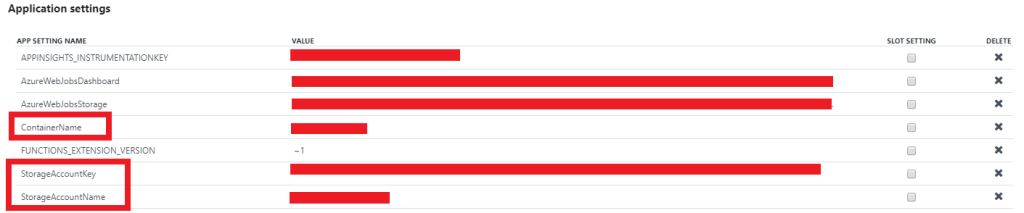
Now only thing we have left is to save the file and upload it to Blob Storage. For this you need the account name, key and container from the Storage. And they need to be added to the app settings.
AppSettings
Values from app settings can be used with $env:NameOfYourSetting.
# Some names and file paths
$Date = Get-Date -Format yyyy-MM-dd-HH-mm
$File = "{0}_stationdata.csv" -f $Date
$FilePath = "$execution_context_functiondirectory\$File"

# Export the stations-data to a file
$Stations | Export-CSV -path $FilePath -Encoding UTF8 -NoTypeInformation

# Read the Blob Storage info from the Functions application settings
$StorageAccountName = $env:StorageAccountName
$StorageAccountKey = $env:StorageAccountKey
$ContainerName = $env:ContainerName

# Create context and upload
$Ctx = New-AzureStorageContext -StorageAccountName $StorageAccountName -StorageAccountKey $StorageAccountKey
Set-AzureStorageBlobContent -File $FilePath -Container $ContainerName -Blob $File -Context $Ctx

# Remove the temp file
Remove-Item $FilePath
Schedule the function, and soon you’ll have nice history data that you can use for analytics.
Example lacks error handling on bad requests or when API incorrectly returns empty values.